Maintenance and Troubleshooting
Overview
The device contains no user-serviceable parts. For any maintenance or repair, please contact technical support at support@renua.it.
- Do not open the device enclosure.
- Do not attempt to repair the device components.
Do not open the device. Opening the device voids the warranty.
Cleaning
Unplug the device from the power outlet before cleaning. Use only a soft, dry cloth; do not use water, detergents, or solvents.
Firmware Updates
The device firmware is updated remotely (FOTA – Firmware Over The Air). To receive updates, keep the device powered and connected to the Wi-Fi network.
Diagnostics from the App
The e-snapp App can read the status of the connection and of the communication with the meter directly from RE-PLUG. Open Menu → Manage devices, select RE-PLUG and choose "Diagnostics"; press the device button 3 times in a row and, when it beeps, tap "Read". Reading does not change the device settings.
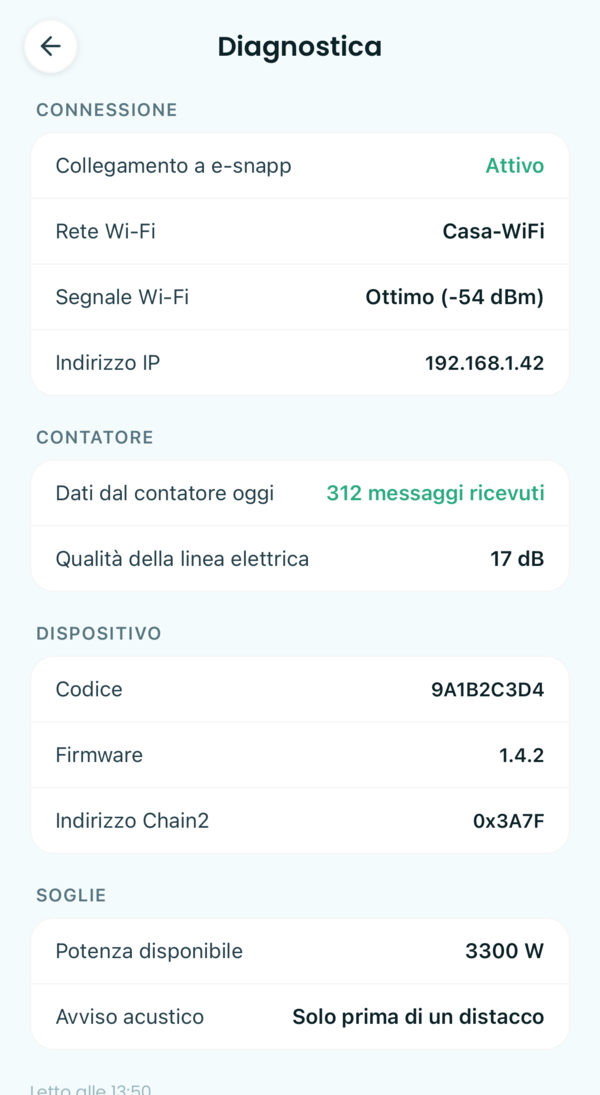
| Section | Information | Meaning |
|---|---|---|
| Connection | Link to e-snapp | Whether the device reaches the e-snapp platform |
| Connection | Wi-Fi network, Wi-Fi signal | Network the device is connected to and signal quality (Excellent, Good, Weak, Very weak) |
| Meter | Data from the meter today | Number of messages received from the meter since midnight |
| Meter | Power line quality | Quality of the power line signal between meter and device |
| Device | Code, Firmware, Chain2 address | Device identification data |
| Thresholds | Available power | Available power of the supply, as reported by the meter |
| Thresholds | Acoustic warning | Buzzer behaviour: off, only before a disconnection (default), at every disconnection warning |
If RE-PLUG has been plugged in for more than a day and receives no data from the meter, the meter pairing may not be active: check its status in Meter Pairing.
Troubleshooting
If the problem persists after applying the solutions listed in the table, please contact technical support.
| Problem | Possible cause | Possible solution |
|---|---|---|
| The device LEDs are off | Outlet not powered or device not activated | Check that the outlet is powered; if necessary, press the button (A) to activate the device; unplug and plug the device back in |
| The device does not connect to the Wi-Fi network | Network not 2.4 GHz, wrong password, or insufficient signal | Check that the network is 2.4 GHz and the password is correct; repeat the connection with "Change Wi-Fi password" (see Commissioning); move the device closer to the router |
| No data from the meter | Meter pairing not yet completed, meter not 2G, outlet not supplied by the monitored meter, or attenuated PLC signal | Wait for meter pairing to be completed (normally within 24 hours); check the requirements; plug the device directly into a wall outlet, without power strips or filters |
| The button does not respond | Temporary internal error | Unplug the device, wait a few seconds, and plug it back in |