Display and Menu
The analyzer features a 2-inch color display and three front buttons that allow you to view measurements and access the configuration menu.
Navigation buttons
| Button | Function |
|---|---|
| UP | Previous page / increase value or scroll up in the menu |
| DOWN | Next page / decrease value or scroll down |
| CONFIRM (OK) | Enter the menu / confirm the selection or value |
On the measurement pages, UP and DOWN cycle through the pages. On the last page (Settings), the CONFIRM button opens the configuration menu.
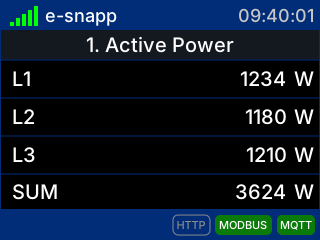
Example measurement page (Active power)
Status bar
- Top: Wi-Fi signal strength with network name (SSID), local time and IP address. When Wi-Fi is not connected, the current status is shown (Not configured, Connecting, Disconnected, Provisioning).
- Bottom: indicators of active communication services (HTTP, MODBUS, MQTT) and any power quality event notifications (DIP, SWELL, SEQERR), which remain visible for about 60 seconds after the event.
Measurement pages
Pages are scrolled with the UP/DOWN buttons:
| Page | Content |
|---|---|
| 1 | Active power (L1, L2, L3, total) |
| 2 | RMS voltage (L1, L2, L3, unbalance) |
| 3 | RMS current (L1, L2, L3, neutral) |
| 4 | Reactive power (L1, L2, L3, total) |
| 5 | Phasor diagram of voltages and currents |
| 6 | Voltage waveforms |
| 7–12 | Voltage (V1, V2, V3) and current (I1, I2, I3) harmonics with THD |
| 13 | Active power trend (last minutes) |
| 14 | Apparent energy (kVAh) |
| 15 | Imported active energy (kWh) |
| 16 | Exported active energy (kWh) |
| 17 | Imported reactive energy (kvarh) |
| 18 | Exported reactive energy (kvarh) |
| 19 | Service Menu (device resource status) |
| 20 | Device Info (model, S/N, TOTP code, firmware version) |
| 21 | Settings (access to the configuration menu) |
The energy counters are permanent and are retained even without power.
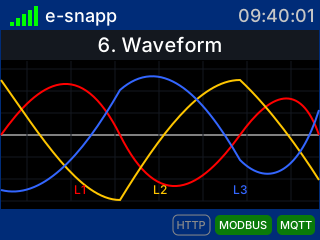
Waveform page (L1/L2/L3 voltages)
On-screen alerts (overvoltage / overcurrent)
If the voltage or current exceeds the safety thresholds, the analyzer shows a full-screen alert (overrange) that takes priority over any page. The alert indicates the out-of-range quantity and its limit. Press CONFIRM (OK) to dismiss the alert; if the condition persists or worsens, the alert reappears automatically.
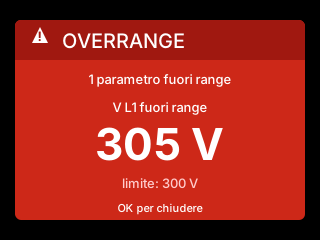
Overrange alert (overvoltage)
Configuration menu (Settings)
From the last page (Settings), press CONFIRM to access the menu. Access is protected by a 4-digit PIN (see Security and Access).
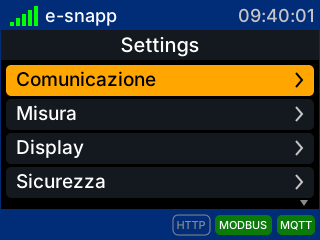
Configuration menu (Settings)
The menu is organized into the following categories:
- Communication – Network (Wi-Fi and IP parameters), MQTT, Modbus TCP, Modbus RTU (RE-431-D-RS485 only), Web Admin
- Measurement – wiring mode and frequency, nominal voltage, current transformer (CT), Dip & Swell, energy counters reset
- Display – standby time and brightness
- Security – change PIN, reset Web password
- Reboot – restart the device
- Exit – return to the measurement pages
Standby and brightness
From the Display menu you can set the display standby time (from “Always on” up to 5 minutes of inactivity) and the brightness (from 10% to 100%). In standby the display turns off to reduce consumption and wakes up when a button is pressed.
Device Info
The Device Info page shows the model, the serial number, the TOTP code (a temporary code used for secure authentication of the cloud services) and the installed firmware version.